When to Use a Full-Screen Metronome
Why a bigger metronome display changes some practice sessions
A metronome does not always need to fill the room. If you are sitting close to a laptop or phone, the sound may do most of the work. But some sessions change the moment you step away from the screen.
That happens in ordinary practice. You may move across the room for long-tone work. You may step back with a wind instrument, stand for conducting gestures, or teach from a piano while students watch from the side. In those moments, a tiny display becomes easy to ignore.
A full-screen layout helps because the beat stops hiding in a small corner of the device. It turns the metronome into a clearer visual reference for BPM, measure starts, and count-ins. If you want that setup without installing anything, the full-screen metronome is built for that exact use case.
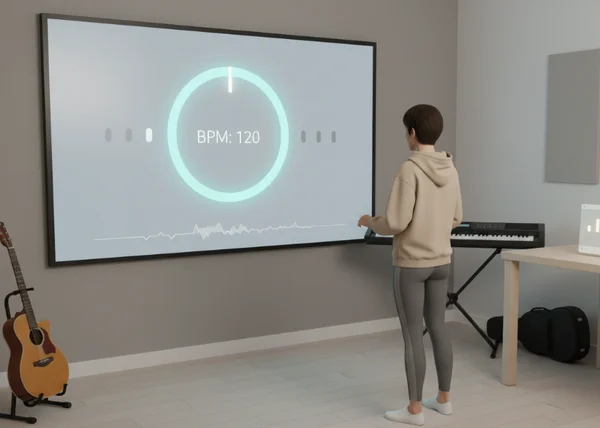
What full-screen mode helps you notice
How BPM and time signature become easier to follow at a distance
A larger display is not just about convenience. It makes the core settings easier to track while you are moving, teaching, or practicing away from the keyboard.
The University of Puget Sound time-signature guide says the top number shows how many beats are grouped together. The bottom number shows which note value counts as the beat. On a full-screen metronome, those details are easier to confirm before you begin, especially when you switch quickly between 3/4, 4/4, or another familiar pattern.
That matters because mistakes here are quiet but costly. A player may think the exercise feels wrong because the tempo is bad, when the real problem is that the bar is grouped differently than expected. A larger display makes it easier to catch the setup before the first click even starts.
Why beat one and count-ins are easier to spot on a larger screen
The University of Puget Sound meter overview says bars can be duple, triple, or quadruple. In plain terms, that means the bar is organized around 2, 3, or 4 beats. A larger display makes that repeating shape easier to follow when you need everyone to feel the same starting point.
This matters most when the first beat carries a job. It may launch a repeated loop, cue a class entrance, or reset a phrase after a stop. When beat one is visible and easy to spot, the room spends less time asking where the measure begins.
A louder click can help, but it is not the same thing. Full-screen mode gives the eye a role alongside the ear. That extra visual anchor becomes useful when several people need to start together or when the player is far enough away that a small display stops being practical.
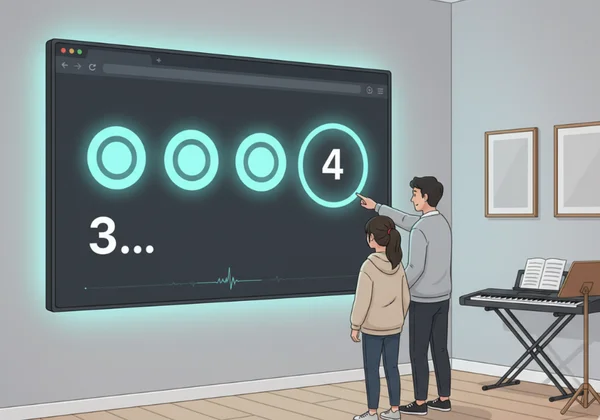
When full-screen mode is worth using
Standing away from the device during drills or warmups
Full-screen mode earns its place when you are not standing over the device. Scale drills, breathing work, percussion warmups, conducting practice, and movement-based exercises all create distance between you and the screen.
The same Puget Sound meter page notes that tempo can be expressed in beats per minute and that 60 BPM equals one beat per second. That makes 60 BPM a clear test case for full-screen mode. At that speed, you have enough time to glance at the visual pulse from across the room and match your next action to the beat without rushing.
This is useful at faster settings too, but the benefit is easiest to feel at slow and moderate tempos. When the beat is slower, the screen helps you stay connected between clicks instead of waiting passively for the next sound. That makes a large visual reference especially practical for warmups that involve movement or distance.
If you practice this way often, the online metronome screen can become part of your setup, not just a backup option. Open it, switch to full-screen, place the device where you can see it, and let the room work with you instead of against you.
Shared starts in lessons, rehearsals, and repeated sections
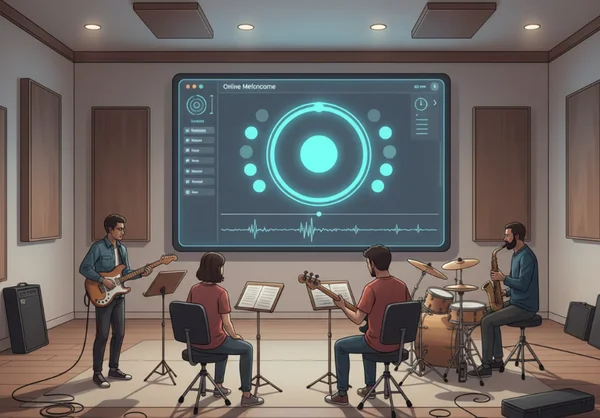
Full-screen mode is also worth using when more than one person needs the same pulse at the same time. A teacher can place the device where the whole room can see the beat. A small ensemble can use it for count-ins before a repeated passage. A rehearsal leader can reset the tempo after stopping without walking everyone through the bar again.
This does not turn the site into a conducting system or rehearsal platform. It is still a simple browser metronome. The point is that a large display makes the simple tool more usable when the pulse has to be shared across the room.
Repeated sections are a strong example. If a group keeps returning to the same four-bar phrase, a full-screen pulse gives everyone one visible place to re-enter. That is often faster and calmer than counting from memory after each stop.
When a small screen or plain click is enough
Close-up solo work at the stand or desk
Not every session needs a large display. If the device is already sitting next to your music stand or desk, the audio may be enough. In that case, full-screen mode can add visual size without solving a real problem.
Close-up solo work often falls into this category. Finger exercises, quiet score study, and short passage drilling usually happen within arm's reach of the device. If you can read the BPM and meter easily without enlarging the view, the smaller screen is probably fine.
That is a useful decision in itself. The goal is not to use the biggest screen possible. The goal is to choose the display that removes friction from the session you are actually doing.
Audio-first practice after the pattern is clear
Full-screen mode is most useful while the setup or shared entry still needs support. Once the pattern is clear, a plain click is often enough.
This is especially true after the meter is already established. If you know the count-in, feel beat one clearly, and no longer need to glance at the screen, the audio can take over. That shift is a good sign. It means the metronome has moved from visible guide to steady background reference.
A simple rule works well: use the large display to establish the pulse, then simplify when the pattern is stable. That is why the browser practice tool works best as a flexible setup, not as one mode you leave unchanged for every exercise.
What to do next in full-screen mode
Start by picking one exercise that creates distance from the device. Set the BPM, confirm the time signature, and switch to full-screen before the first run. If you are not sure where to begin, try a familiar drill at 60 BPM so the visual pulse has time to register clearly.
Then ask one practical question: am I using the larger display because it helps me track the pulse, or only because it looks nicer? If it helps you re-enter on beat one, hold count-ins together, or see the meter from across the room, keep it on. If not, return to the smaller view and let the audio do the work.
The best setup is the one that fits the session in front of you. For fast access to BPM, time signature, and a larger visual pulse, the practice display page gives you all three in one place.